
SoloFire for Chrome is a free browser extension that opens your SoloFire content library and Spark in a side panel next to whatever page you’re on. You can share a tracked Space in a couple of clicks, or ask Spark about the page you’re reading, without leaving the tab. Here is what it does, what it can and can’t see, and how to add the SoloFire Chrome extension to your browser.
Why put your sales content next to every tab?
Most of a rep’s day happens in a browser. The prospect’s website, the inbox, the CRM, a LinkedIn thread, a hospital’s value analysis page. The approved content lives somewhere else, in an app you have to switch to, search, and share from before you can switch back.
That switch is where good intentions leak. A rep in the middle of an email grabs the PDF sitting in their downloads folder instead of the current version. The attachment goes out untracked, and nobody knows whether it was opened. In medical device and life science sales, “which version did we send?” is not a trivia question.
SoloFire for Chrome removes the switch. The library comes to the tab, and what goes out is a tracked, branded Space built from approved files, not an attachment.
How do you share a Space from any tab?
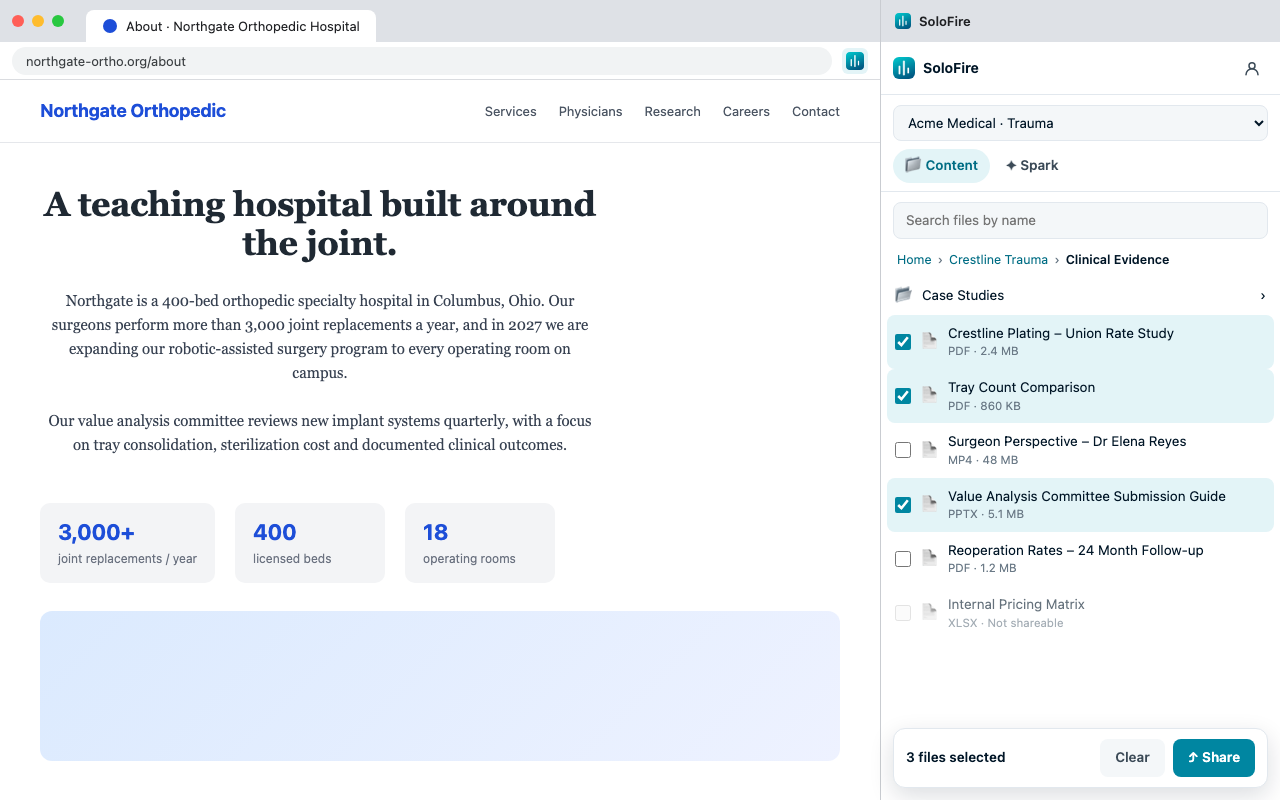
Click the SoloFire icon in your toolbar, or right-click the page and choose “Share SoloFire content”. The side panel opens beside the page you’re on.
- Find the files. Browse your configuration’s folders, or search by file name.
- Select one or several. A case study, a comparison, a submission guide: tick as many as the conversation needs.
- Share as a Space. Give it a name and an optional message. SoloFire creates the Space and copies the link to your clipboard.
- Paste it anywhere. An email, a LinkedIn message, a CRM note. It’s a link, so it works on any website.
Tracking comes from the Space itself, not the extension. You see who opened it and what they viewed, in the same Space analytics you get when you share from the SoloFire app.
Can Spark answer questions about the page I’m on?
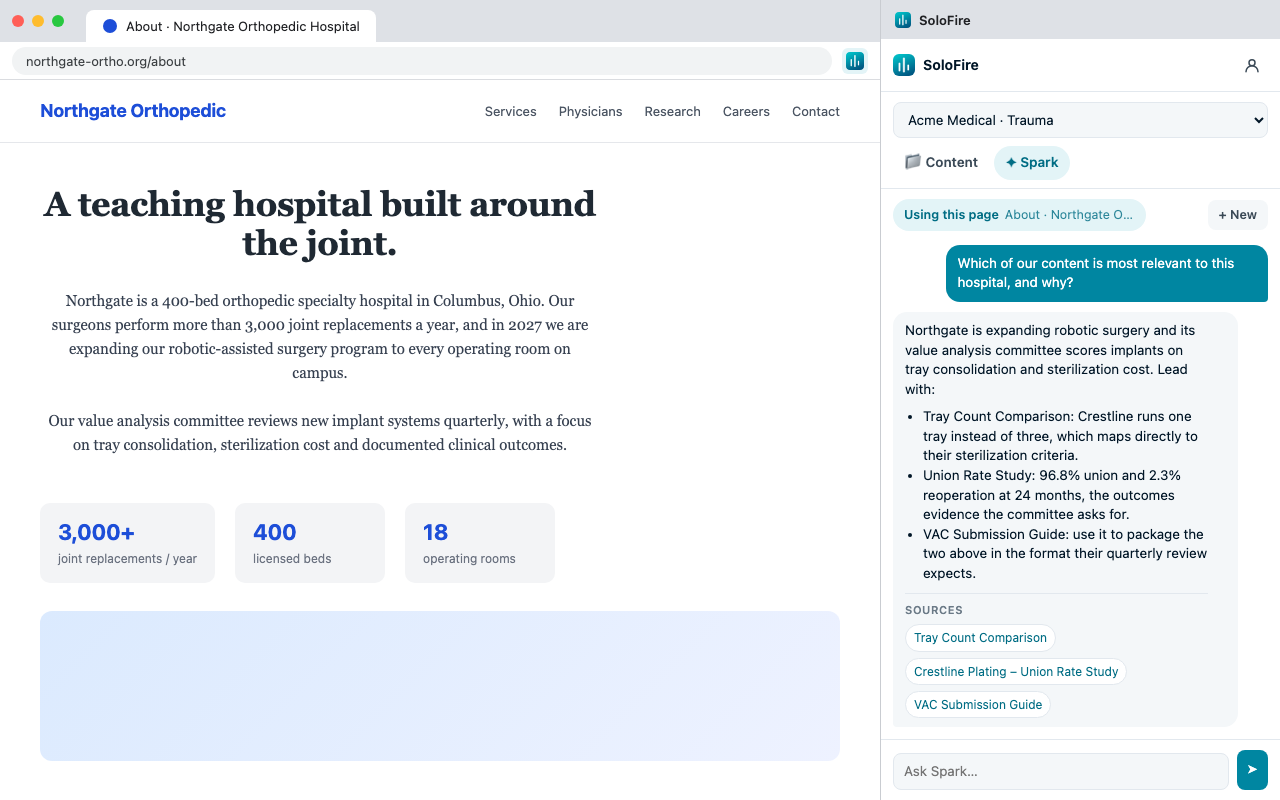
Yes. Switch to the Spark tab and turn on “Use this page”. Spark AI then reads the page you’re viewing (your selected text if you’ve highlighted something, otherwise the visible text) alongside your company’s approved content. You can also right-click any page and choose “Ask Spark about this page”.
That makes questions like these possible while you’re still on the prospect’s site:
- “Which of our case studies fits this hospital, and why?”
- “How does our pricing compare to what this page says?”
- “What should I lead with, given what this committee says it cares about?”
Spark answers from the content your organization has approved, and lists the source files it used underneath every answer, so you can check before you repeat anything to a customer.
What can the extension see, and what can’t it?
Enablement and IT leaders will ask this first, so here is the short version:
- Sign-in: you sign in with your SoloFire account, including single sign-on. The extension never sees your password. It holds a revocable token.
- Content: reps only see content they already have access to in SoloFire. Nothing changes about who can see what.
- Pages you visit: the extension reads a page’s text only when you ask Spark with “Use this page” switched on.
- Tracking: the extension doesn’t track anything itself. Engagement data comes from the Spaces you share.
- Disconnecting: sign out from the panel, or revoke access any time from Settings › Connected apps in SoloFire.
Where does it fit in a rep’s day?
A quick reference for the moments the side panel is built for. Share it with your team when you roll the extension out.
| You’re… | In the panel | What you end up with |
|---|---|---|
| Researching a hospital before a value analysis meeting | Ask Spark with “Use this page” on | The approved files most relevant to that account, with sources |
| Replying to a prospect’s email | Search by file name, select, share | A tracked Space link in your reply instead of an attachment |
| Following up after a call | Multi-select the files you discussed | One Space with everything, named for the meeting |
| Answering a LinkedIn message | Right-click › Share SoloFire content | A link you can paste straight into the message |
| Logging a CRM note | Share, then paste | The Space link in the record, with engagement tracked in SoloFire |
How do I get started?
- Add it to Chrome. SoloFire for Chrome is free to install from the Chrome Web Store.
- Sign in with SoloFire. Use your existing account, including SSO.
- Open it next to any page. Click the toolbar icon or right-click the page.
The extension works with your company’s SoloFire account. If access isn’t switched on for your company yet, the panel will tell you, and your SoloFire admin can get in touch with us.
What good looks like
A rollout is working when reps stop downloading files to attach them. Content goes out as Spaces from wherever the conversation happens, marketing sees those shares in the same analytics as app shares, and the answers reps give on a prospect’s site come from approved material with a source attached.
That’s the whole idea: the approved library and Spark, one click from every tab. Read the details on the SoloFire for Chrome page, or book a demo below and we’ll show it to you on your own content.